
Connect Tripletex to Tredco
Tredco connects to Tripletex with an API user key, which Tredco calls the employee token. You create the key yourself in Tripletex, and it belongs to one user in the company. Once connected, you can send the parts of a quote's payment plan for invoicing. Tredco then finds or creates the customer in Tripletex and creates an order there. The order links to the quote's PDF; if the quote has no PDF yet, Tredco makes it first.
Tripletex then becomes the company's accounting system, in place of Tredco Accounting. A company has one accounting system at a time, chosen under Modules. Importing the trial balance and open items from Tripletex into Tredco Accounting is a separate connection made through the assistant, and it reads other parts of the accounts.
Tripletex's screens are in Norwegian below, as they appear in Tripletex, with an English gloss the first time each one comes up.
Before you start
- You need a Tripletex user with access to the system. The key belongs to that user.
- To create the key and change its access, the user needs user administration access. If you don't have it, a Tripletex administrator can give it to you or create the key for you.
- The company's Tripletex subscription must include integrations with API 2.0. An administrator can check and change that under "Selskap" (Company) and "Mitt abonnement" (My subscription).
- If you have access to several companies in Tripletex, open the company you're connecting before you create the key.
- Tredco checks the key's access before it can be saved. To read it, both the key and the user who owns it need "Brukeradministrator" (user administrator) in Tripletex.
- In Tredco, you need permission to change the company settings to see Modules.
Create the key in Tripletex
- Log in to Tripletex, in the company you're connecting.
- Tap the profile icon in the top right and choose "Min profil" (My profile).
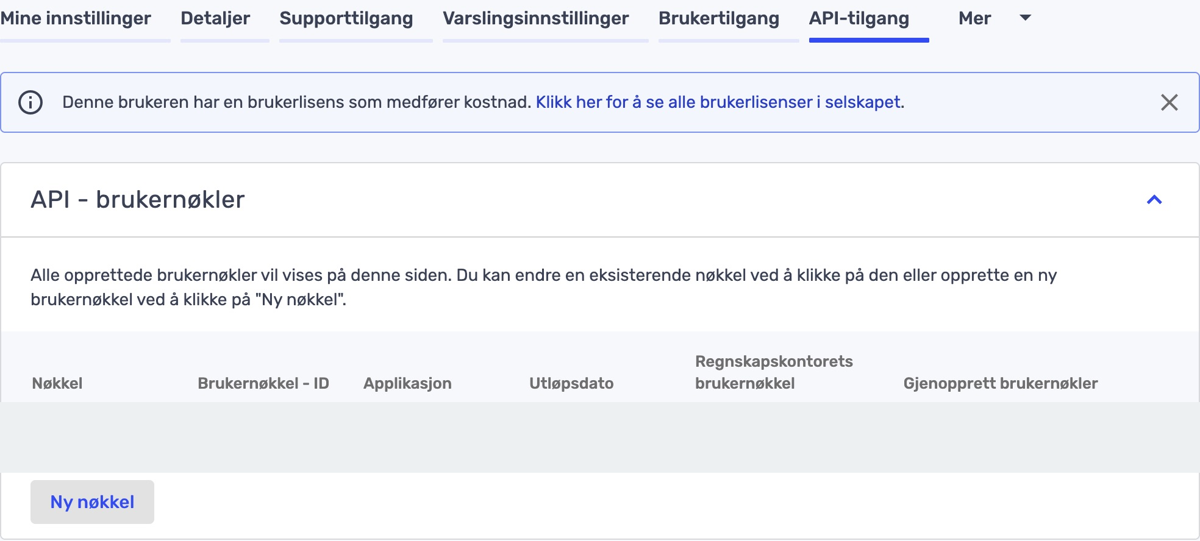
- Open the "API-tilgang" (API access) tab and tap "Ny nøkkel" (New key). The "Ny brukernøkkel" (New user key) window opens.
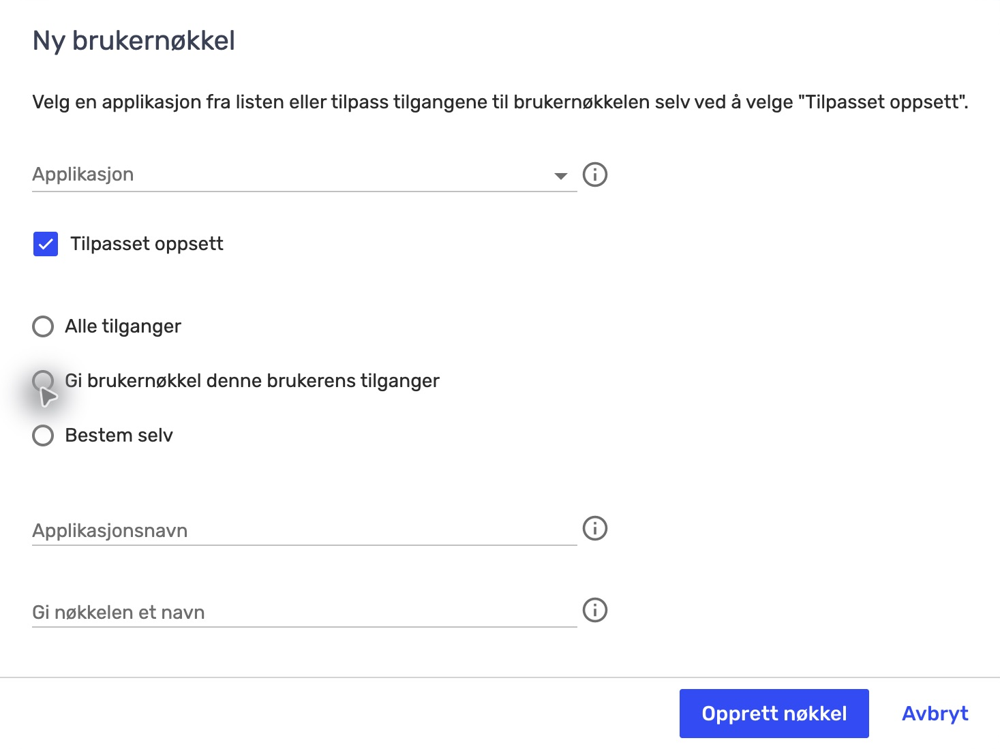
- Tick "Tilpasset oppsett" (Custom setup) to enter the application name yourself.
- Choose "Alle tilganger" (All access). If you'd rather restrict the key, read the section on access below before you go on.
- Type Tredco in "Applikasjonsnavn" (Application name), exactly like that, with a capital T.
- In "Gi nøkkelen et navn" (Name the key), give it a name you'll recognise, for example Tredco.
- Tap "Opprett nøkkel" (Create key) and copy the key straight away. Tripletex shows it only this once.
Choose the key's access
The key must be able to do everything Tredco does in Tripletex: find the customer, create the customer if it doesn't exist, create the order, and read the company's VAT codes. Tredco doesn't fetch reports, vouchers or payroll through this connection.
"Alle tilganger". This is the setup the steps above follow. The key gets all the access the user who owns it has, but never more. Access the user lacks shows greyed out on the key and doesn't work. So the user must be able to see and create customers and create orders, and have "Brukeradministrator" so Tredco can check the key. The downside is that the key can do far more in Tripletex than Tredco uses. If it leaks, it can be used for anything the user has access to.
Restricted access ("Bestem selv", decide yourself). The key gets only the access you tick, so it can do less harm if it leaks. We don't have a confirmed restricted setup that covers everything Tredco does, so this guide doesn't show one. The key needs "Brukeradministrator" either way, or Tredco can't check it, and then it can't be saved. If you still want to restrict the key, contact Tredco support before you create it, and hold off on "Bestem selv" until you've had the access it needs confirmed. Then choose "Bestem selv" in step 5. After step 8, tap the key's name under "API-tilgang", tick the confirmed access and tap "Lagre" (Save) at the bottom, before you test the key in Tredco.
The table shows individual access we know Tredco uses. It isn't a complete setup, and which access lets the key read the VAT codes is still not known. The check in Tredco still shows whether the key can read them.
| What Tredco does | Access in Tripletex |
|---|---|
| Finds the customer | Kunde/leverandør › "Tilgang til kunde- og leverandørinformasjon" (customer and supplier information) |
| Creates the customer if it doesn't exist | Kunde/leverandør › "Tilgang til å opprette kunder og leverandører" (create customers and suppliers), as well as the access above |
| Creates the order | Faktura › "Å opprette ordre" (create orders), or "Alle ordre" (all orders), which also gives an overview of every order |
| Reads the company's VAT codes | Not yet known |
The third choice, "Gi brukernøkkel denne brukerens tilganger" (give the key this user's access), copies the access the user has when the key is created. It has the same downside as "Alle tilganger".
Paste the key into Tredco
- Open the settings in Tredco and choose Modules under The company.
- Tap Connect Tripletex under Accounting system. If the company uses Tredco Accounting now, it says Tripletex becomes the accounting system when you save. The books in Tredco stay.
- Paste the key into the Employee token field.
- Leave Test environment off. It's for Tripletex's own test environment, and a key from your ordinary Tripletex won't work there.
- Tap Test connection. Tredco checks the key and shows what it found. If it shows a company name, check that it's the right company.
- Once the key has the access Tredco uses, tap Finish. Tredco checks the key once more before saving it.
The check only reads, and creates nothing in Tripletex. It tries to see customers and read the VAT codes with the key. In the access lists of the key and the user who owns it, it looks for both being able to create customers and orders, and for neither having read-only access. If something is missing, or Tredco can't confirm it, the key can't be saved, and Tredco shows what it's about. If Tripletex lists access Tredco can't read safely, the key can't be saved, and Tredco shows why. A key that passes the check still can't promise that every order will go through later.
If it doesn't work
- You can't see the "API-tilgang" tab. Your user lacks user administration access, or the company's subscription doesn't include integrations with API 2.0. Ask the Tripletex administrator.
- Tripletex didn't accept the key. Check that you copied the whole key with no spaces before or after it, that "Applikasjonsnavn" is exactly Tredco, and that Test environment is off. The list under "API-tilgang" also shows the key's expiry date.
- The key lacks access. Tredco shows which. Tap the key's name under "API-tilgang", give it that access, tap "Lagre", and test again. The user who owns the key must have it too.
- Tredco couldn't confirm the access. Check that both the key and the user who owns it have "Brukeradministrator", and test again. If that doesn't help, contact Tredco support.
- Finish stays inactive, and the test doesn't show what it found. You're probably using an older version of the app. Update it and test the key again.
- Sending for invoicing fails. Tap the key's name under "API-tilgang" and check what access it has. Also check that the user who owns the key has that access.
- You lost the key before pasting it. Tripletex won't show it again. Create a new key and paste it into Tredco. According to Tripletex, creating a new key for the same integration makes the previous one invalid.
- The key may have leaked. Treat it like a password, and never send it by email or in a chat. If someone else got hold of it, create a new one, paste it into Tredco, and ask the Tripletex administrator to remove the old one if it's still in the list.
Sources
- Tripletex (Norwegian): Hvordan oppretter jeg en API-brukernøkkel?, on who the key belongs to, user administration, "Tilpasset oppsett" with an application name, and the key being shown only once
- Tripletex (Norwegian): Hvordan aktiverer jeg integrasjoner med API-brukernøkkel?, on integrations with API 2.0 under "Mitt abonnement"
- Tripletex (Norwegian): Hvilke tilganger kan jeg gi innenfor kunder og leverandører?, on seeing and creating customers
- Tripletex (Norwegian): Hvilke tilganger kan jeg gi innenfor fakturamodulen?, on "Å opprette ordre" and "Alle ordre"
- Tripletex (Norwegian): Hvordan finner jeg ut hvilke tilganger brukernøkkelen har?, on seeing and changing a key's access
- Tripletex for developers: Authentication and tokens, on a key never getting more than its owner, and a new key for the same integration making the previous one invalid